
OPSWAT File Security for Chrome leverages MetaDefender Cloud technology to protect users from malicious downloads. The extension creates a sanitized version of each downloaded file, scans downloads for malware with over 20 anti-malware engines, dynamically analyzes files to uncover zero-day and evasive threats with our Sandbox solution and performs Reputation lookups for URLs. Add the extension here.
How it works
User navigates to a page or initiates a download (or right-clicks a link → Scan with MetaDefender before downloading).
MetaDefender Cloud can check URL reputation and, if a file download is initiated, can analyze the file using any combination of multi-scan, Deep CDR, and OPSWAT Sandbox
The browser gets a verdict for the URL and/or file (Clean / Blocked / Sanitized). If clean, the site/file loads or the download proceeds; if not, the user is warned and access can be blocked or a sanitized file offered.
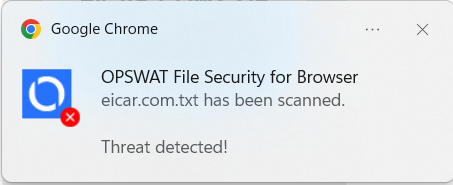
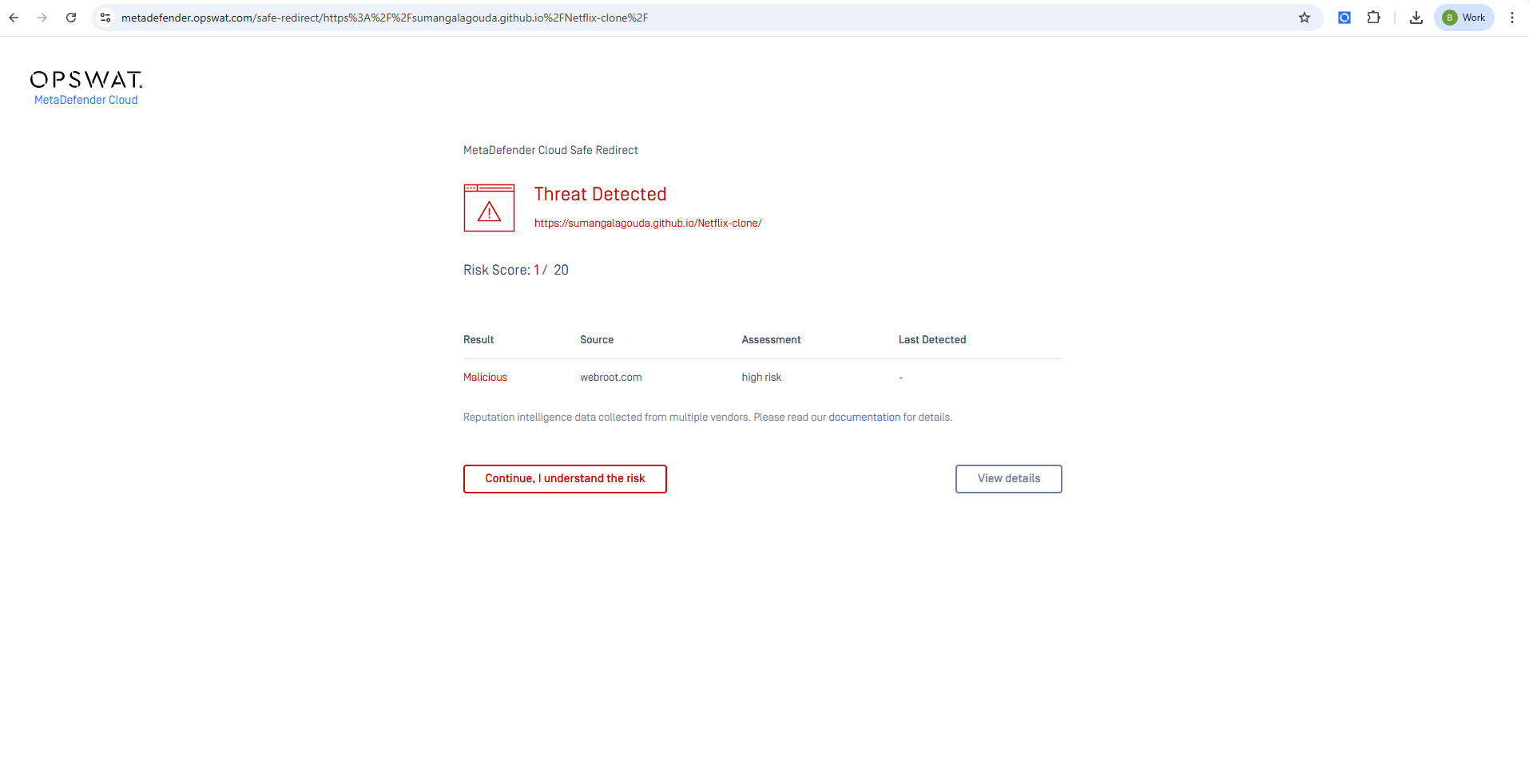
Browser Extension Menu
The main navigation tool is the left side menu. It has three sections: Scan History, Settings, and About (each of which are discussed in further detail below).
Scan History
You can see a history of all downloads, along with the scan results for each, on the Scan History page. All the files scanned by the extension can be accessed here.
To see the Scan History, click on the OPSWAT File Security extension icon on the top right of your browser and click "View Scan History"

The top side of the page displays a "Search history" input where the user can search for files by filename.
The list displays:
the filename (green for clean files, red for infected files, blue for Not scanned / No scan results)
the sha256 hash of the file
an icon to show if the file was scanned with MetaDefender Cloud or MetaDefender Core


the scan time of the file stating when you scanned it $plugin[4xc8xi9ido3]
the scanning results
Clicking on the filename will open the scan results page on MetaDefender Cloud or Core, depending on which server was used to scan the file.
When hovering over the file, a trash bin icon is displayed on the right side of the row, next to the scan icon. Clicking on the trash icon will remove the scan results from the list. There is also a "CLEAR SCAN HISTORY" button at the top right of the page which will remove all entries.
This is a "Chrome extension" specific scan history and has nothing to do with the scan history of the account on MetaDefender Cloud or Core servers. It only records the entries scanned by the extension and does not reset if the apikey or server is changed.
Settings
The chrome extension has multiple settings to customize behavior:
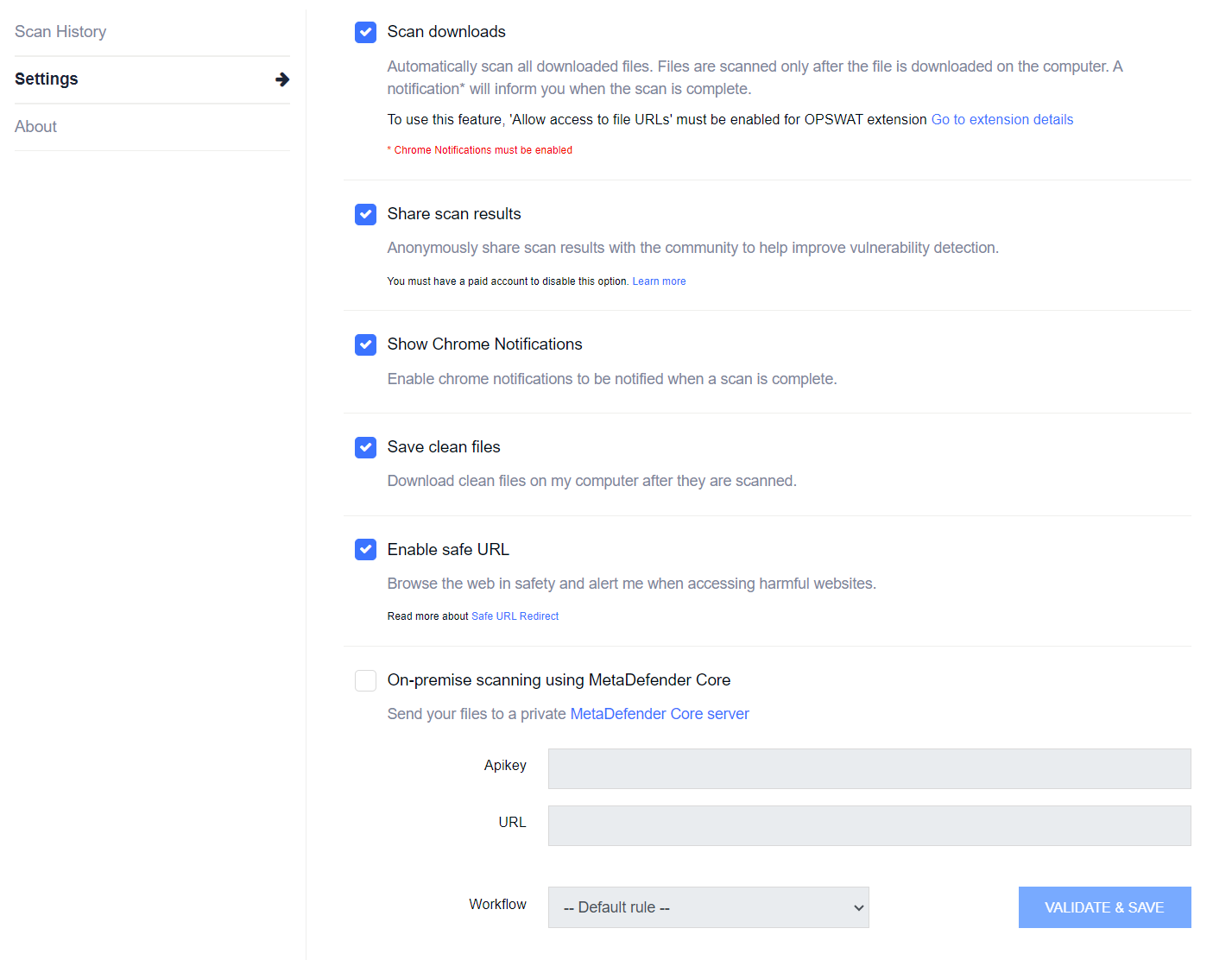
Option | Applies to | Description |
|---|---|---|
Scan downloads | Core, Cloud | With this option enabled, all files downloaded with Chrome will also be sent to download by MetaDefender |
Share scan results | Cloud | [Only for paid users] Instruct the server to delete the file after the scan has finished, and not share it with any vendor |
Show Chrome Notifications | Core, Cloud | Show notifications for scan start and finish |
Save clean files | Core, Cloud | When right-clicking a file to download, the option "Scan and download with OPSWAT" will first scan the file, and only if the file is clean, it will be saved on the host computer |
Enable safe URL | Cloud | Scan every URL before opening with Safe URL redirect |
Skip scanning filer larger than | Cloud | Skip scanning files which are larger than a threshold (minimum of 1MB) |
Scanning using Custom MetaDefender Cloud API Key | Cloud | Use a custom MetaDefender Cloud API Key when user is not authenticated |
On-premise scanning | Core | Configure the extension to connect to a private MetaDefender Core instance to scan files. For the connection, all that is needed is the server URL and an API key with scan rights. The workflows section configures what workflow rule header the extension should send with the files to scan. |
Allowlisted Domains | Cloud | Set a list of allowed domains for which the Browser Extension will not perform a reputation look-ul if safe URL is enabled |
You have the option to share your scanned files with the community of MetaDefender Cloud users in order to improve detection rates. We encourage our users to do so in order to increase detection speeds and encourage threat research.
However, if you would like to keep all your downloaded files private, paid users have the option to use MetaDefender Cloud's private scanning feature.
About
The about section is where user account info is displayed along with important links.
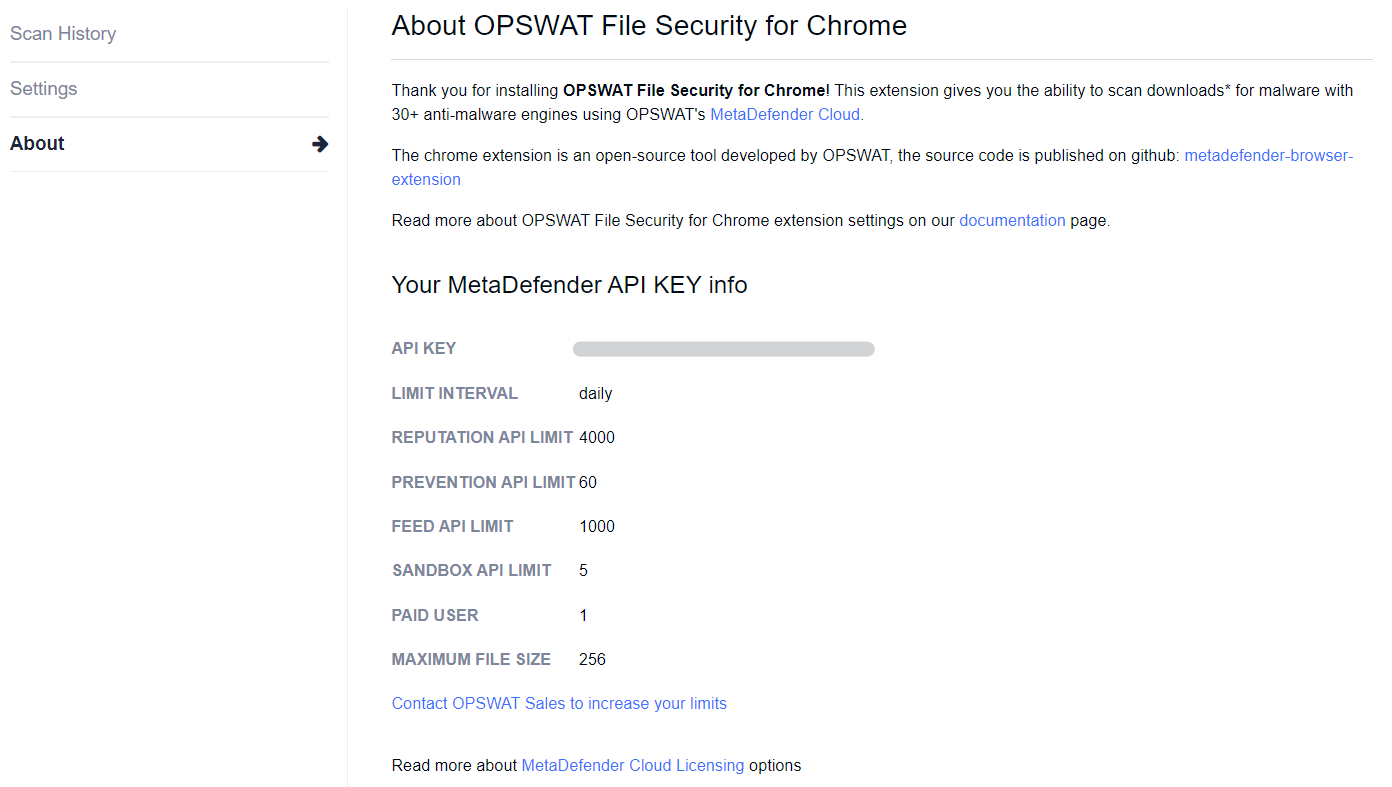
The chrome extension uses the same account as MetaDefender Cloud. If the user does not log in, a default apikey will be assigned. Users can also enforce what MetaDefender Cloud API Key they want to use when not logged in.
Deployment & management options
GPO Template
SCCM Template
Intune (Microsoft Endpoint Manager)
Google Admin Console (Chrome Enterprise / ChromeOS)
It is an open-source tool developed by OPSWAT, the source code is published on GitHub: https://github.com/OPSWAT/metadefender-browser-extension
Go to the chrome web store and Add OPSWAT File Security for Chrome Extension here.
OPSWAT File Security for Browser available for EDGE Browser
Enhance your file security protection directly in Microsoft EDGE Browser. OPSWAT File Security for Browser extension protects your sensitive documents with advanced threat detection, quick access controls, and seamless browser integration - safeguarding every file you download form the internet.