How to generate a CIP Report
This guide provides step-by-step instructions on generating a CIP (Critical Infrastructure Protection) report using the system.
1. Navigating to the Reports Page
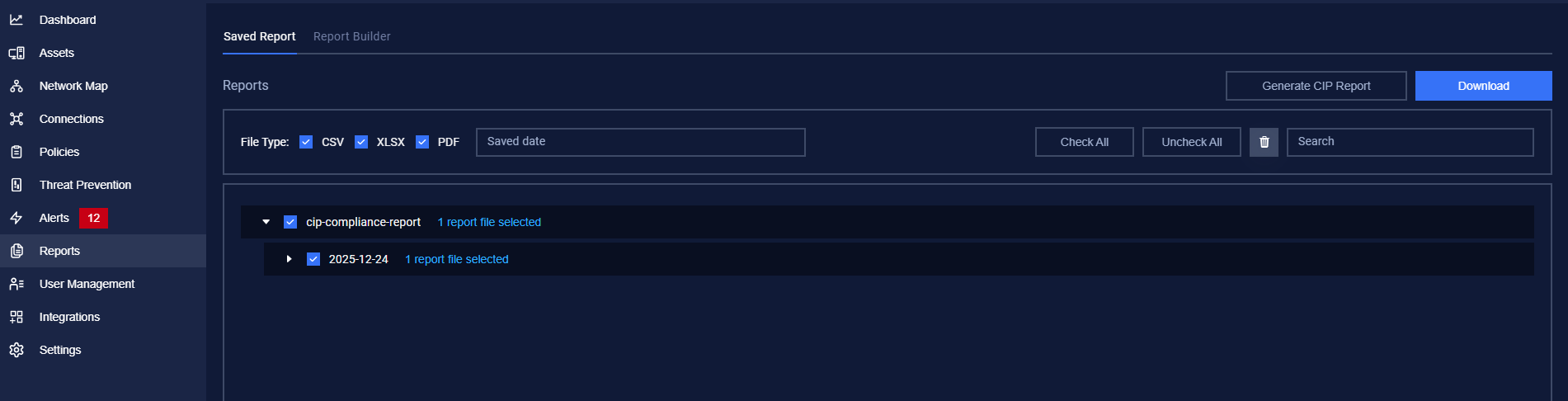
Locate the Reports page from the main menu or navigation bar.
Click on the Saved Report page to proceed
2. Initialing CIP Report Generation
On the Saved Report page, locate the Generate CIP Report button in the top-right corner of the screen.
Click the Generate CIP Report button to start the process.
3. Capturing the Network Map
Before generating the CIP report, you must capture the Network Map as prompted:
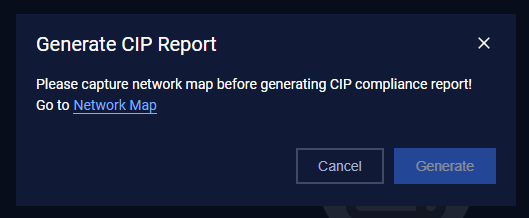
After clicking the Generate CIP Report button, a popup will appear with instructions.
Navigate to the Network Map page from the main menu or navigation bar.
On the Network Map page, clicking on the icon to capture.

Once the Network Map is successfully captured, you can proceed to the next step.
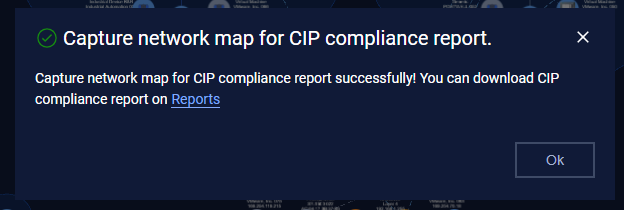
4. Completing the CIP Report Generation
Return to the Saved Report page.
Click the Generate CIP Report button again to finalize the report.
The system will process the request and generate the CIP report.

5. Downloading the CIP Report
This is the same with Downloading Report of Report Export and Management Guide.