Configuration
Cloud NAC Integration is accessible under Integrations > Cloud NAC of the MetaDefender OT Security Site Manager
After clicking "Enable Cloud NAC", the configuration screen appears. Below is an overview of the setup process:
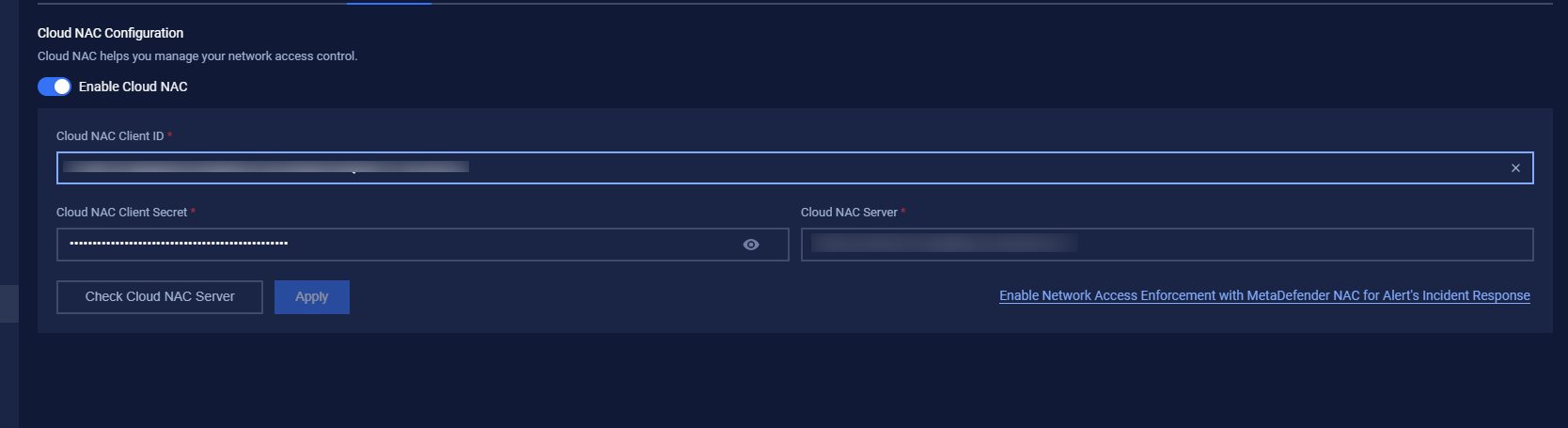
1. Authentication
All fields in this section are required. Use the values collected during the Cloud NAC configuration.

The table below explains the fields used for configuration in detail:
Field Name | Value/Notes |
|---|---|
Cloud NAC Client ID | Use the Client ID |
Cloud NAC Client Secret | Use the Client Secret |
Cloud NAC Server | Enter the Cloud NAC Address. |
2. Check Cloud NAC Service and Apply
Check Cloud NAC Server: Click "Check Cloud NAC Server" to validate the settings. If successful, a message "Check Cloud NAC server successfully" appears in the top-right corner.
Apply Configuration: Click "Apply" to save the configuration. A confirmation message, "Update Cloud NAC Successfully," appears.
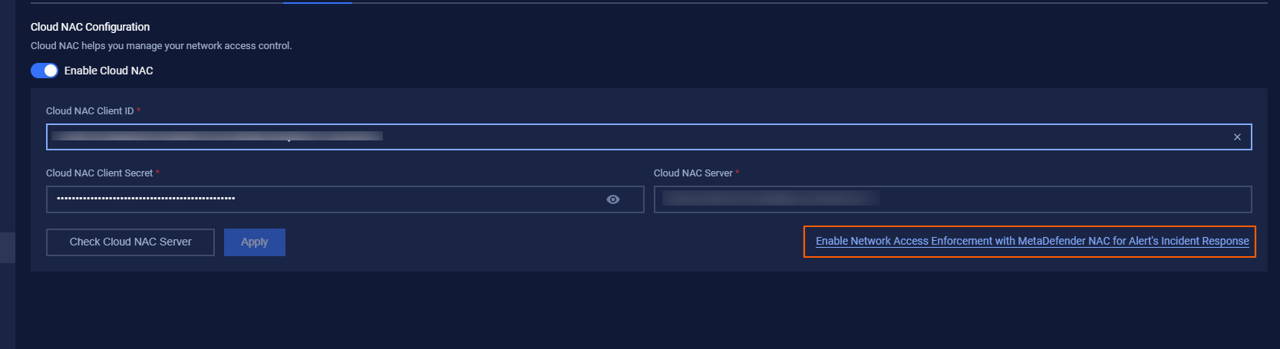
3. Enable Network Access Enforcement with MetaDefender NAC for Alert's Incident Response
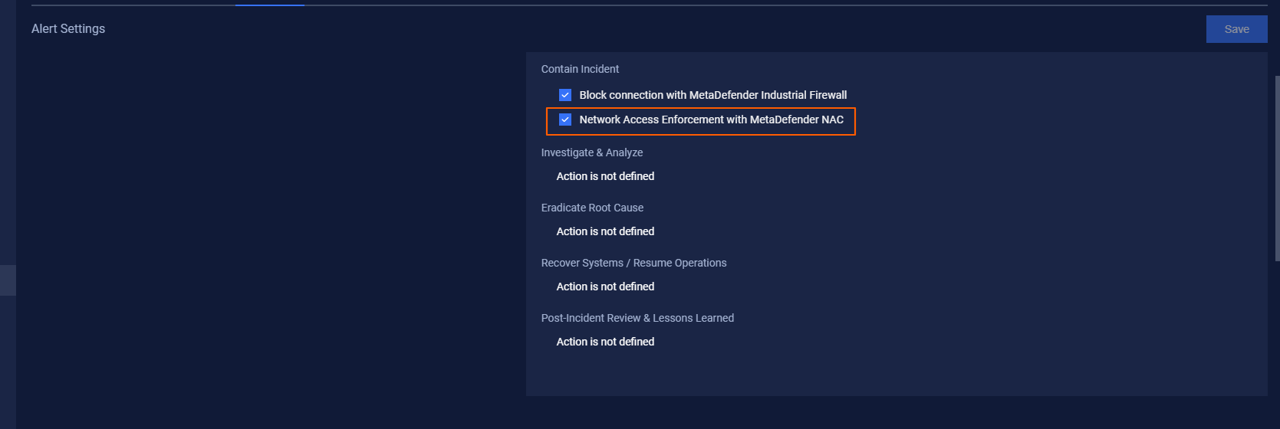
Click on this link to navigate to the Alert Setting page to enable Network Access Enforcement with MetaDefender NAC for Alert's Incident Response
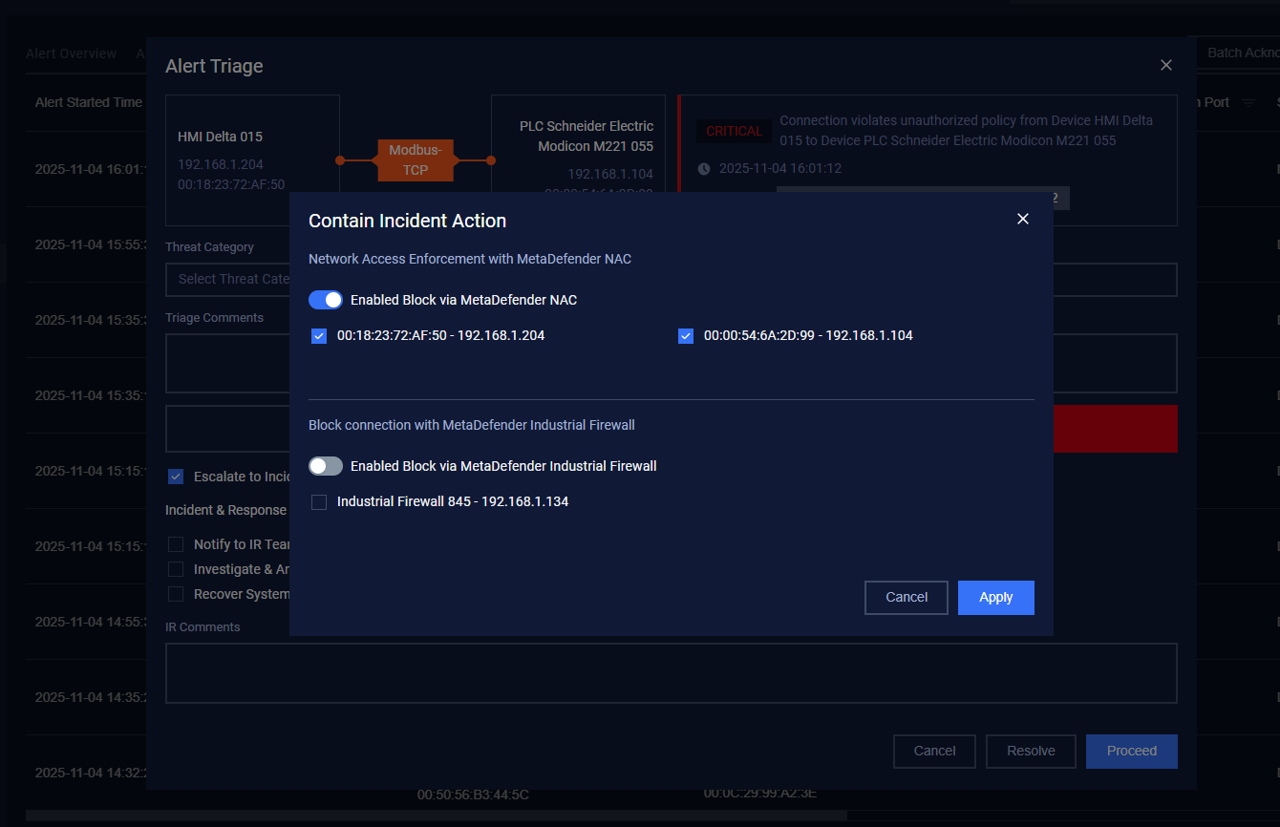
Escalate to Incident on Alert Triage:
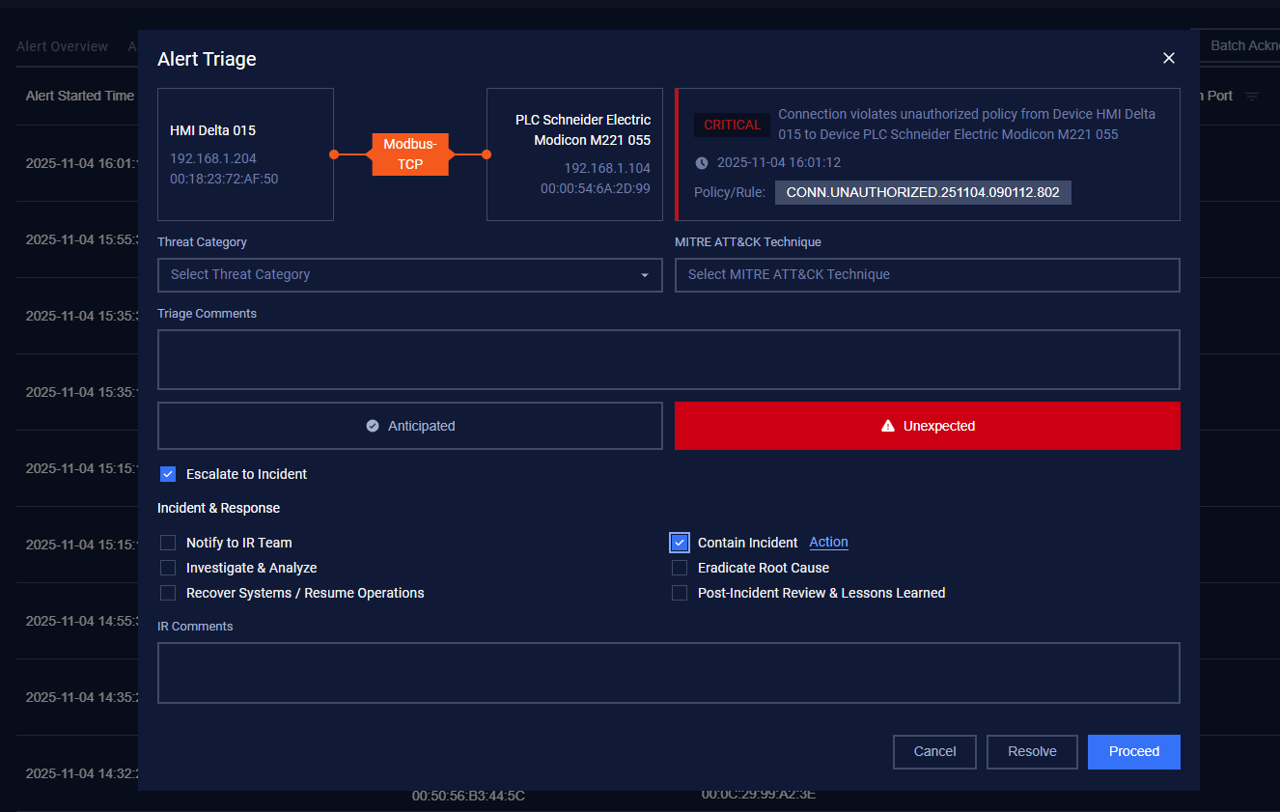
Enabled Block via MetaDefender NAC option will be displayed on Contain Incident Action: