
The list of connections is accessible under Connections → Connection List.
List of connections contains all connections of devices in the system. (Up and down)
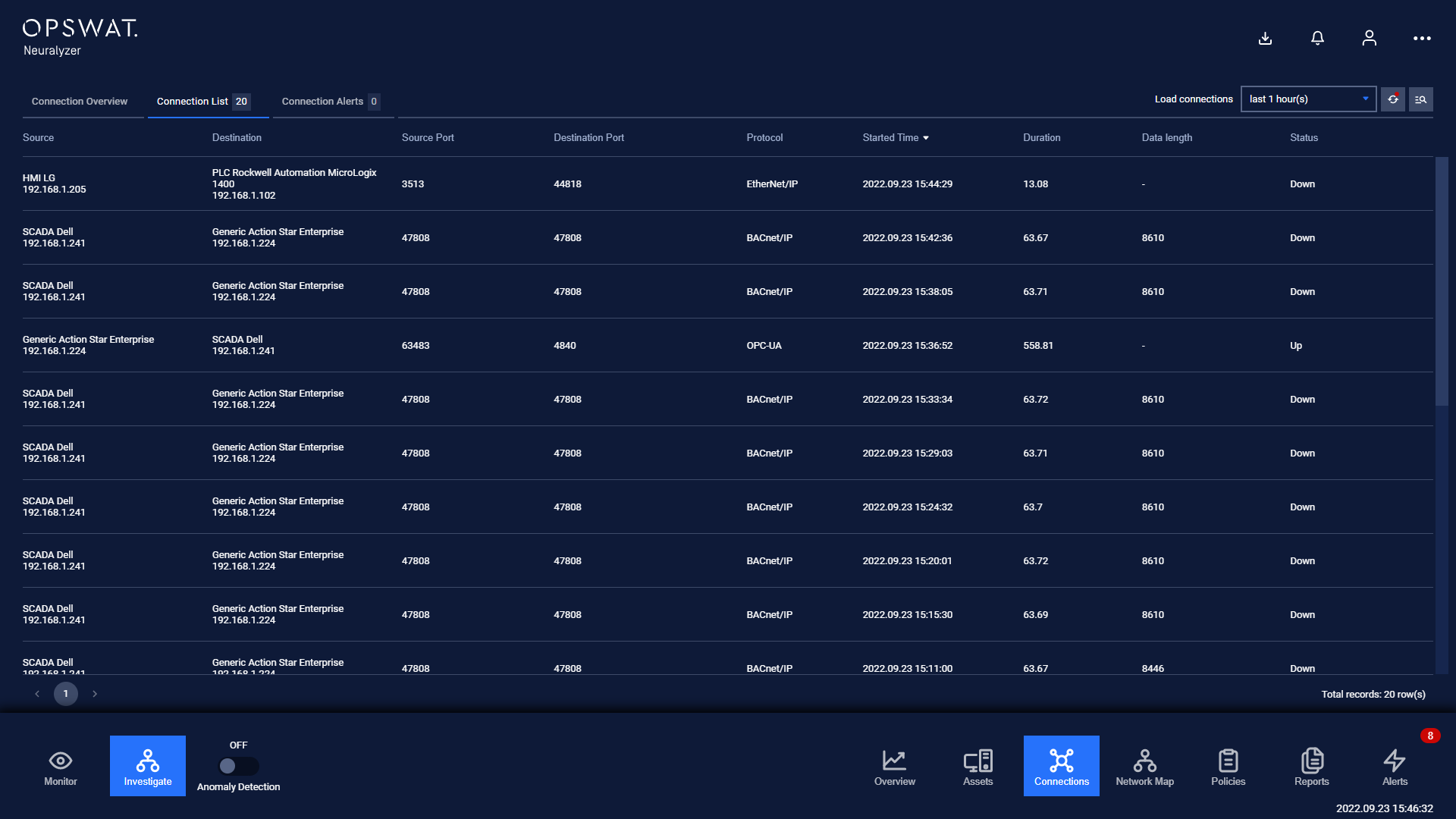
Each record contains these following fields:
Source device (device from internal network), destination device (device from internal network)/ destination host (remote host).
Source port, destination port.
Protocol.
Started time.
Duration, Data length.
Connection status (up/down).
Since the number of connection may be huge after a day, you can choose the period time to load connection at the Load connections (Today/Last 24hours/From-to).
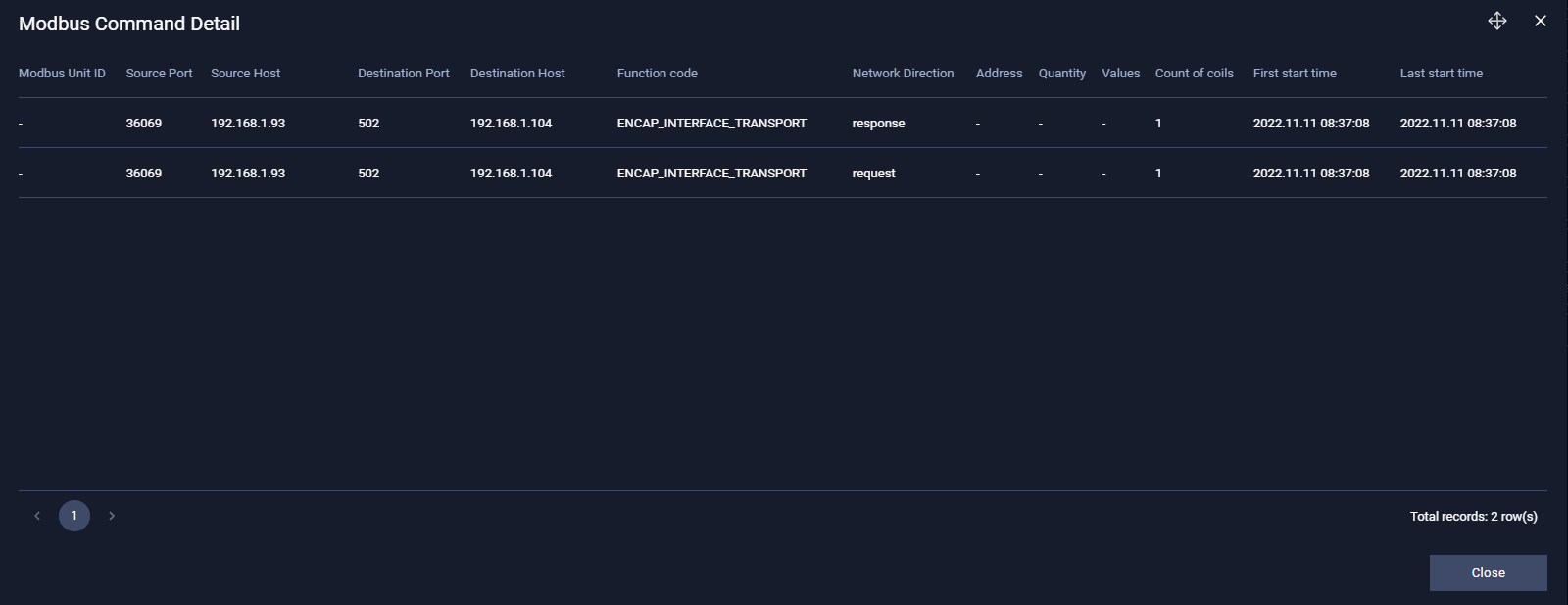
For the Modbus detail protocol, there is a button at the end of row to distinguish it from other protocols.
Filter
We support searching and filtering on the list of connections:
You can enter value for 1 or more fields, and the result list and number of total records will be updated according to the value you entered.
Index | Field | Data type | Type of input | Support multi-select | Support multiple input value | Comment |
|---|---|---|---|---|---|---|
1 | Source (device) | Text | Input text | No | No | |
2 | Destination (device/host) | Text/Number | Input text or IP address | No | No | |
3 | Source Port | Number | Input Number | No | No | |
4 | Destination Port | Number | Input Number | No | No | |
5 | Protocol | Text | Input Text | No | No | |
6 | Started time from | Date time | Select from pop-up calendar and clock | No | No | |
7 | Started time to | Date time | Select from pop-up calendar and clock | No | No | |
8 | Duration | Decimal number | Input Number | No | No | |
9 | Data length | Decimal number | Input Number | No | No |
You can change the order of the fields displaying on the list by clicking "..." -> “Filter preference” then drag and drop the fields and arrange them in the desired order.
You can choose to show/hide the fields in the list by clicking "..." -> “Filter preference” and tick/untick the box on the left of field name
You can save a custom filter for your convenience when you need to reuse them in the future. Enter values into the fields to filter then select "..." -> "Create filter", give a name for your filter. Every time you come back, click on "..." → Your saved filter to apply it.
You can update your saved custom filters by editing/adding values to the fields and selecting "..." then "Save filter”
You can delete a saved custom filter by selecting “…” → “X” button on saved filter