1. Overview
The system provides functionality to export system settings, device data, scanned/learned information, and policies. This guide outlines the steps to generate, manage, and download these reports effectively.
2. Exporting Reports
2.1. Saving Reports
Navigate to any page where exporting is supported.
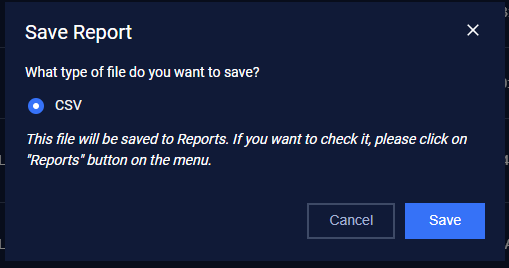
Click the Save Report button located at the top-right corner.

Select the desired file format for the report.
Supported Formats
CSV: Suitable for data analysis in spreadsheet applications.
PDF: Ideal for sharing and presentation purposes.
2.2. Storing Reports
Once saved, all generated reports are automatically stored on the Reports page
3. Downloading Reports
3.1. Step to Download
Navigate to the Reports page.
Locate the desired report file. You can use filters or the search bar for convenience:
Filters: Filter by file type or download date.
Search: Search reports by their name.

Check the box next to the file(s) you want to export.
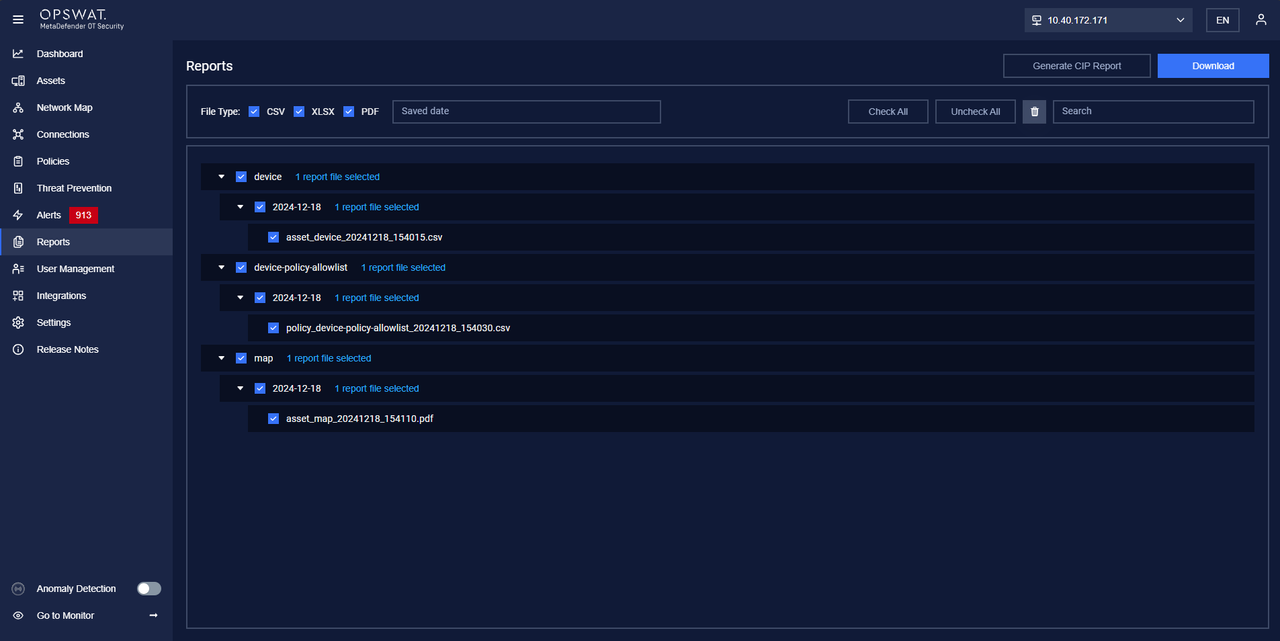
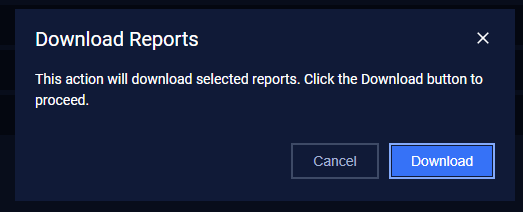
Click the Download button to save the file(s)