How to upload and scan a file?
Step 1 - Go to the main page
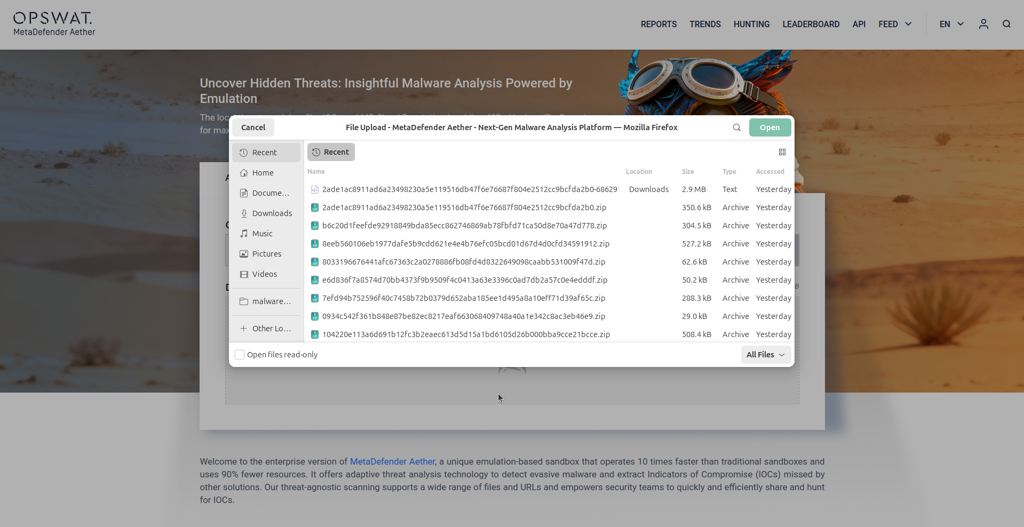
Navigate to the main page of your MetaDefender Aether instance and either drag and drop a file or upload one using the file browser by clicking on the upload area.
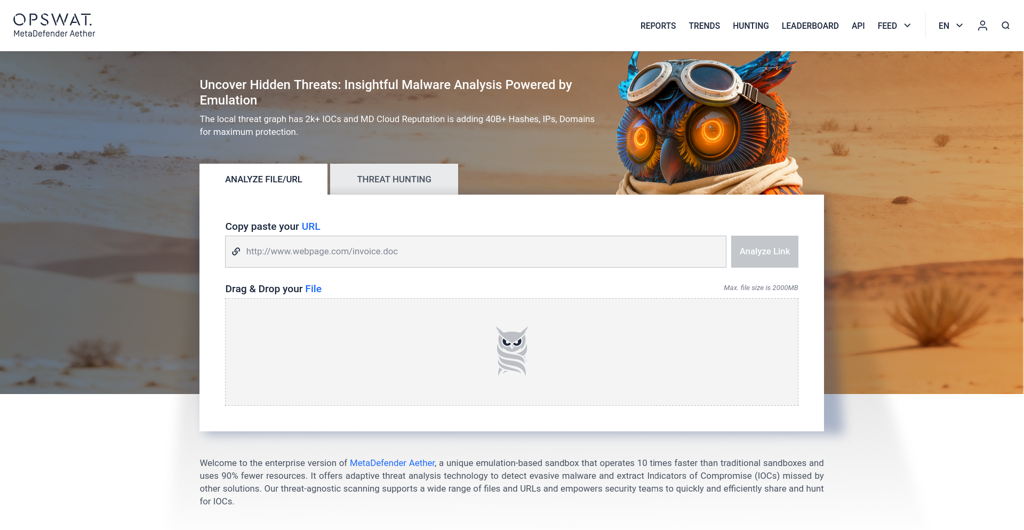
Uploading a file via File Browse
Step 2 - Customize analysis options
Basic Options
Set the most important analysis options for your upload
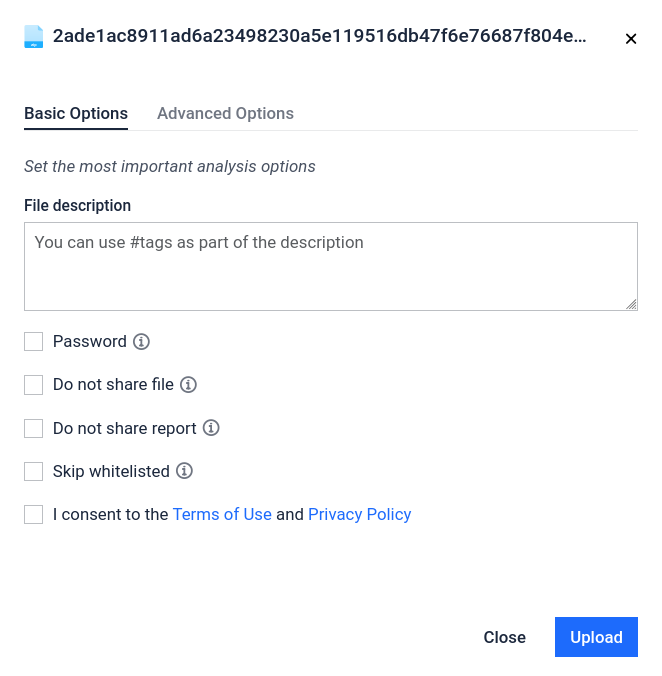
Tags: You can add some description with #tags
Optional You can apply some optional settings:
Password: You could provide a password for password-protected archives. The following common password will be applied automatically if archive uses common password:
“infected”
“malware”
“virus”
“password”
Do not share file: This setting prohibits other community members from accessing the file. However, the reports remain public (Including screenshots and extracted texts.)
Skip whitelisted: If the file is detected as "whitelisted", the file won't be scanned and report won't be created.
Advanced Options
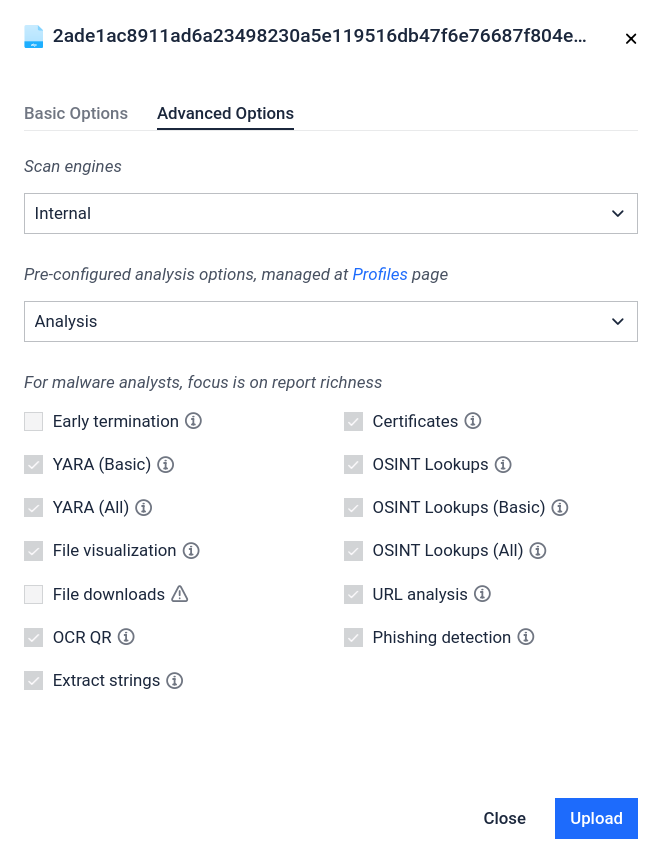
Optional Authentication required For advanced options you must be authenticated. Advanced options are:
Pre-configured analysis options: It excludes the apply_fine-tune_analysis use case. If you apply this setting, then the system will apply a preconfigured profile to execute the scan.
Rapid mode - Most simple analysis, disable multiple individual options
Fine-tune key aspects of your analysis: You can choose from the following list. The selection is optional. It is not required to select at least one.
YARA (Basic) - Enabling YARA rule matches on input file
YARA (All) - Enabling YARA rule matches on extracted artefacts
File visualization - Enabling file visualization (e.g. PDF rendering)
Images OCR - Enabling OCR text recognition on extracted images
File downloads - Enabling downloading files from extracted URLs
OSINT Lookups - Enable OSINT Lookups globally
OSINT Lookups (Basic) - Enable OSINT Lookups on the IOCs related to the input file
OSINT Lookups (All) - Enable OSINT Lookups also on the extracted artifacts
Domain resolving - Enable Resolving domains to the IPs (DNS)
WHOIS - Enable WHOIS record lookups
IP geolocation - Enable metadata lookups for Extracted IDs
Personalization: You can apply this feature to save the selected configuration.
Save preset
Step 3 - Accept the Term of Use and Privacy Policy (Filescan.io)
Required For scan it is necessary to accept the Term of Use and Privacy Policy.

Step 4 - Start the scan
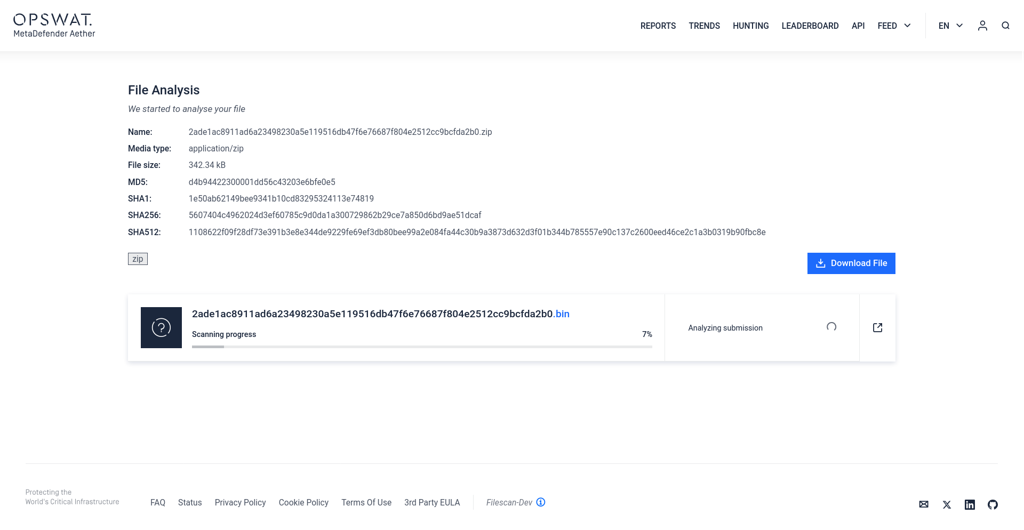
After clicking the Upload button, the scanning process will begin.