
Before activating a license, users must be registered on my.opswat.com. Registration is free.
MetaDefender Optical Diode (hereinafter Optical Diode) needs to be licensed to be operational. In this section we will show how to get a valid license file and how to apply it to the Optical Diode system.
A license is only required on the Optical Diode BLUE side. There is no need to apply a license on the RED side.
Activating the Optical Diode
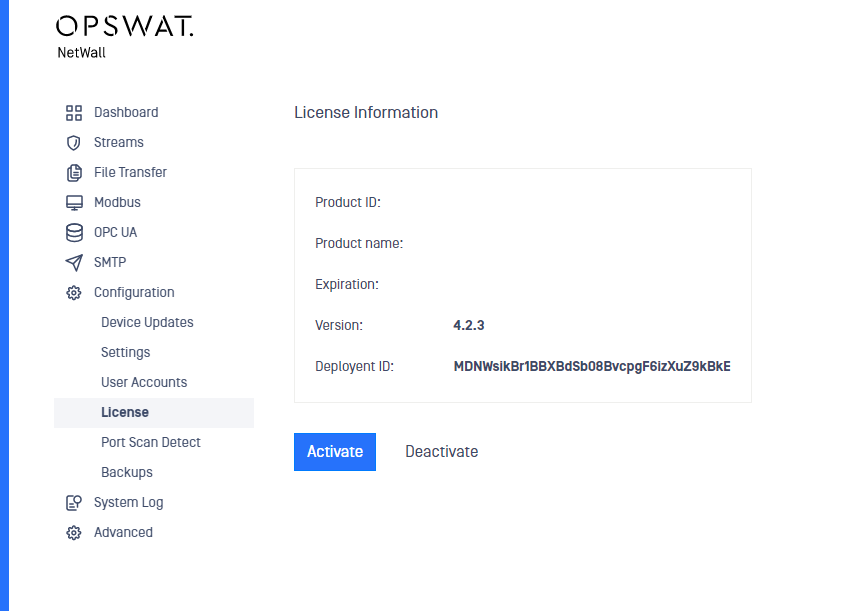
First thing is to check the Deployment ID. This ID can be found in Configuration -> License. Deployment ID needs to be copied as we will need it to get a valid license file.
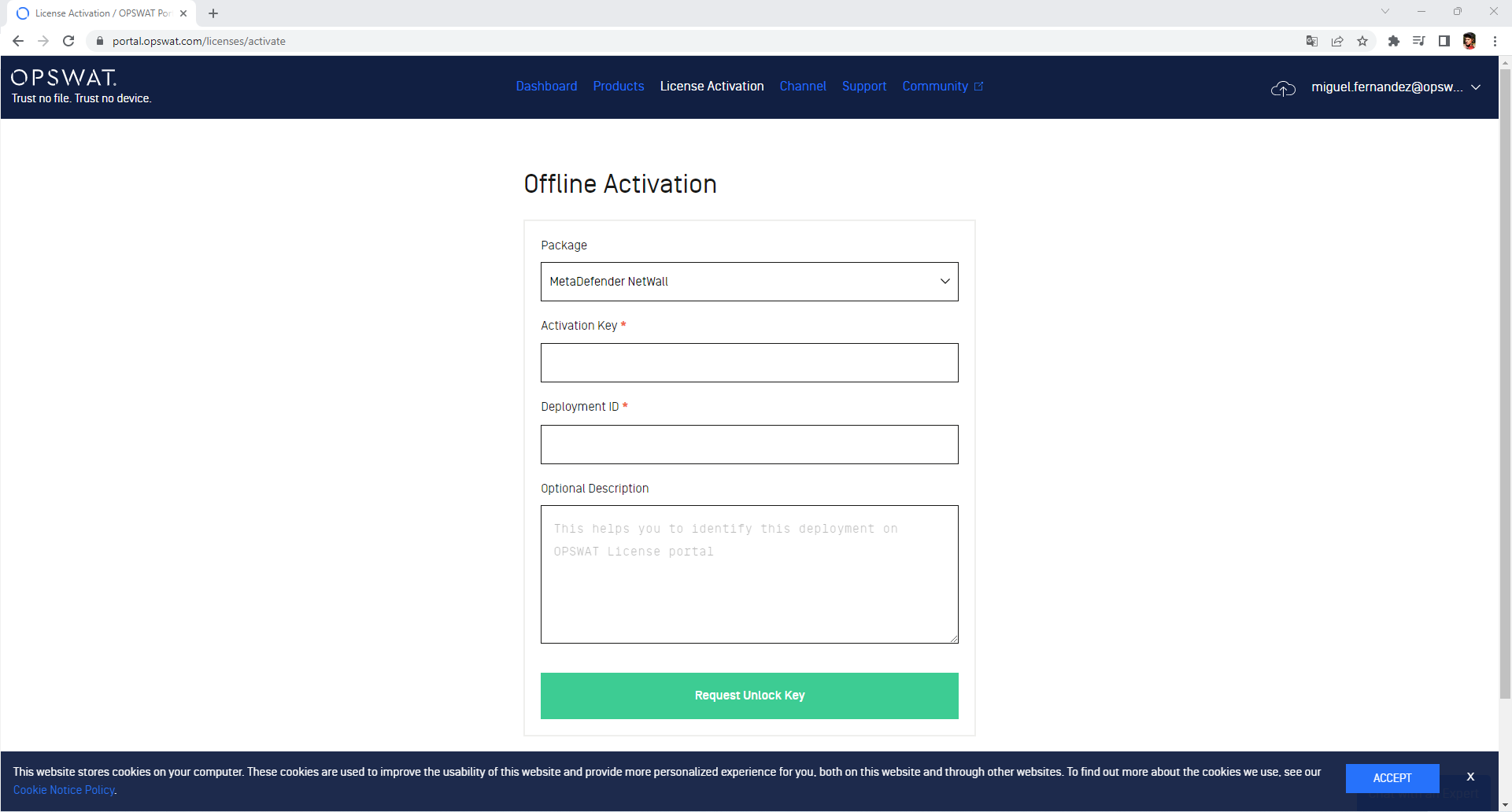
Then browse to my.opswat.com and login with your user/password. Once correctly logged in, click on License Activation and fill in the following fields:
Package: Select MetaDefender NetWall from the dropdown.
Activation Key: Insert the Activation Key that your OPSWAT sales representative has provided you with.
Deployment ID: Paste the Deployment ID you've copied in the previous step
Optional description: In this optional field, a description for the license key can be included.
Once filled in click on Request Unlock Key button and then click on Download Unlock Key to get the license file.
Once you have the Unlock Key file, we need to come back to the Optical Diode UI to activate the key. Go to Configuration -> License and click on Activate.
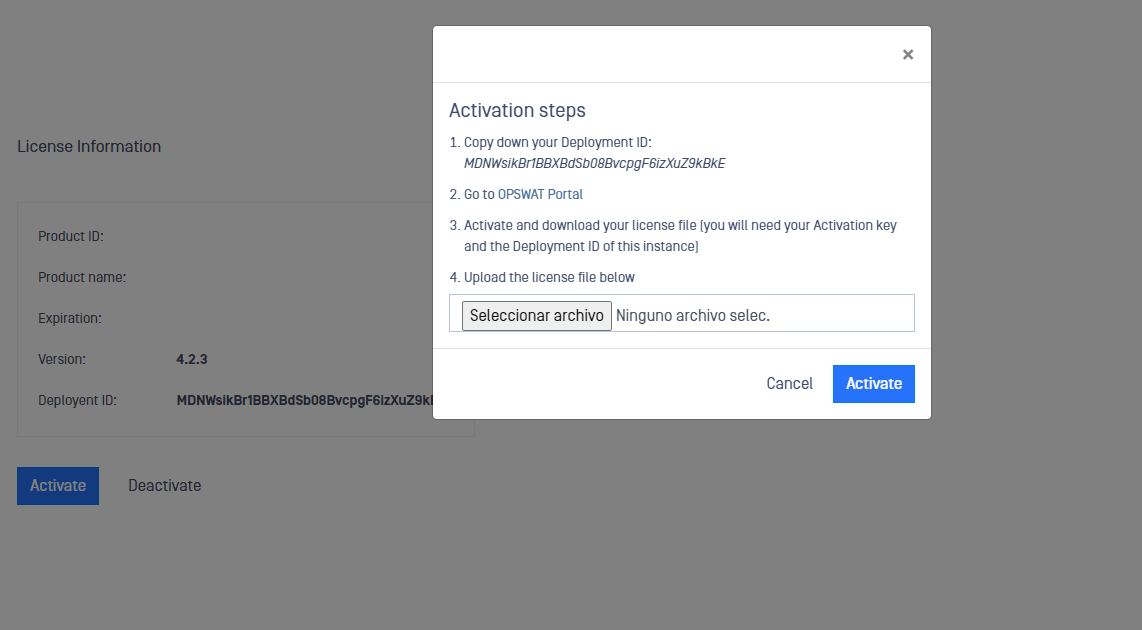
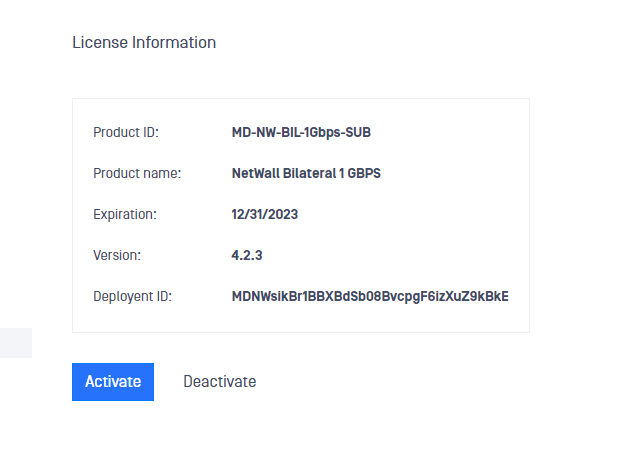
Click on Select File and browse to the Activation Key we have stored in the previous step. Then click on Activate. Once Active, you will be able to see new information in the fields Product ID, Product Name and Expiration.
Deactivating the Optical Diode
Deactivation needs to be done in two steps:
The Optical Diode needs to be deactivated from the GUI interface
The deployment needs to be deactivated from the Activation Key (This is done by OPSWAT Support Team)
To fully deactivate the Optical Diode please contact OPSWAT Support Team to assist.